
98 lines
3.2 KiB
Markdown
98 lines
3.2 KiB
Markdown
---
|
|
title: Docker
|
|
---
|
|
|
|
# Installing DEV with Docker
|
|
|
|
If you encounter any errors with our Docker setup, please kindly
|
|
[report any issues](https://github.com/thepracticaldev/dev.to/issues/new/choose)!
|
|
|
|
## Installing prerequisites
|
|
|
|
_These prerequisites assume you're working on an operating system supported by
|
|
Docker._
|
|
|
|
### Docker and Docker Compose
|
|
|
|
Docker is available for many different operating systems. We recommend you
|
|
follow the [Docker CE install guide](https://docs.docker.com/install/), which
|
|
illustrates multiple installation options for each OS.
|
|
|
|
You're also going to need Docker Compose, to start multiple containers. We
|
|
recommend you follow the
|
|
[Docker Compose install guide](https://docs.docker.com/compose/install/) as
|
|
well.
|
|
|
|
## Installing DEV
|
|
|
|
1. Fork DEV's repository, e.g. <https://github.com/thepracticaldev/dev.to/fork>
|
|
1. Clone your forked repository, eg.
|
|
`git clone https://github.com/<your-username>/dev.to.git`
|
|
1. Set up your environment variables/secrets
|
|
|
|
- Take a look at `Envfile`. This file lists all the `ENV` variables we use
|
|
and provides a fake default for any missing keys.
|
|
- The [backend guide](/backend) will show you how to get free API keys for
|
|
additional services that may be required to run certain parts of the app.
|
|
- For any key that you wish to enter/replace:
|
|
|
|
1. Create `config/application.yml` by copying from the provided template
|
|
(i.e. with bash:
|
|
`cp config/sample_application.yml config/application.yml`). This is a
|
|
personal file that is ignored in git.
|
|
1. Obtain the development variable and apply the key you wish to
|
|
enter/replace. i.e.:
|
|
|
|
```shell
|
|
GITHUB_KEY: "SOME_REAL_SECURE_KEY_HERE"
|
|
GITHUB_SECRET: "ANOTHER_REAL_SECURE_KEY_HERE"
|
|
```
|
|
|
|
- You do not need "real" keys for basic development. Some features require
|
|
certain keys, so you may be able to add them as you go.
|
|
|
|
## Running the Docker app via docker-compose (recommended)
|
|
|
|
_Docker compose will by default use postgres:9.6 as the database version, should
|
|
you want to update that set the `POSTGRES_VERSION` variable in your environment
|
|
and start the container again_
|
|
|
|
1. Run `bin/docker-setup`
|
|
2. That's it! Navigate to <http://localhost:3000>
|
|
|
|
The script executes the following steps:
|
|
|
|
1. `docker-compose build`
|
|
2. `docker-compose run web rails app_initializer:setup`
|
|
3. `docker-compose up`
|
|
|
|
## Running the Docker app (advanced)
|
|
|
|
DEV provides a `docker-run.sh` script which can be used to run the Docker app
|
|
with custom options.
|
|
|
|
Please execute the script itself to view all additional options:
|
|
|
|
```shell
|
|
./docker-run.sh
|
|
```
|
|
|
|
## Known Problems & Solutions
|
|
|
|
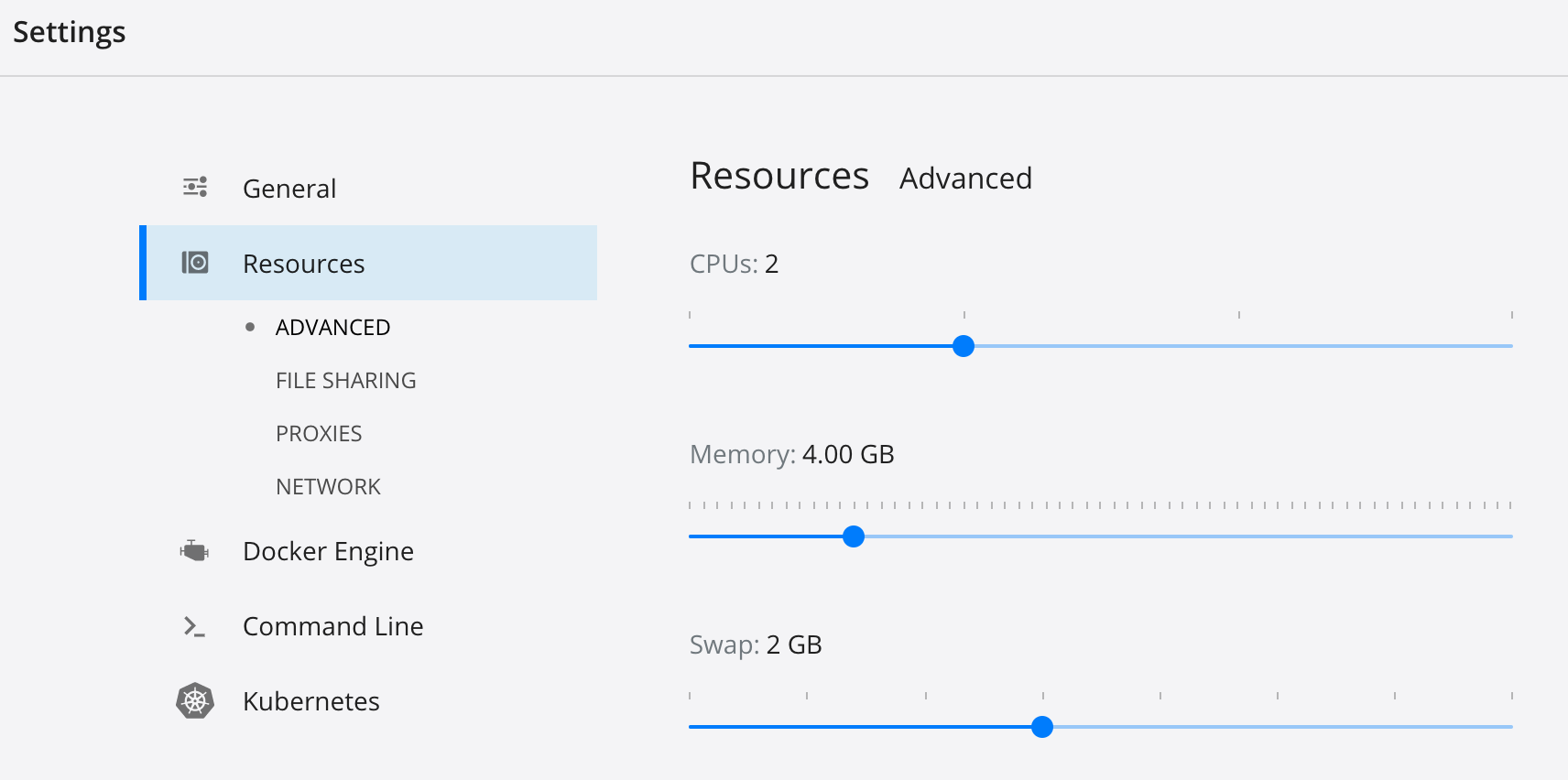
- Should you experience problems with the Elasticsearch container, try to
|
|
increase the memory and/or swap allocation for Docker. On macOS this can be
|
|
done via the GUI:
|
|
|
|
|
|
|
|
- In case `rails server` doesn't start with the following message:
|
|
|
|
```
|
|
Data update scripts need to be run before you can start the application. Please run rails data_updates:run (RuntimeError)
|
|
```
|
|
|
|
run the following command:
|
|
|
|
```shell
|
|
docker-compose run web rails data_updates:run
|
|
```
|