
3.2 KiB
| title |
|---|
| Docker |
Installing DEV with Docker
If you encounter any errors with our Docker setup, please kindly report any issues!
Installing prerequisites
These prerequisites assume you're working on an operating system supported by Docker.
Docker and Docker Compose
Docker is available for many different operating systems. We recommend you follow the Docker CE install guide, which illustrates multiple installation options for each OS.
You're also going to need Docker Compose, to start multiple containers. We recommend you follow the Docker Compose install guide as well.
Installing DEV
-
Fork DEV's repository, e.g. https://github.com/thepracticaldev/dev.to/fork
-
Clone your forked repository, eg.
git clone https://github.com/<your-username>/dev.to.git -
Set up your environment variables/secrets
-
Take a look at
Envfile. This file lists all theENVvariables we use and provides a fake default for any missing keys. -
The backend guide will show you how to get free API keys for additional services that may be required to run certain parts of the app.
-
For any key that you wish to enter/replace:
- Create
config/application.ymlby copying from the provided template (i.e. with bash:cp config/sample_application.yml config/application.yml). This is a personal file that is ignored in git. - Obtain the development variable and apply the key you wish to enter/replace. i.e.:
GITHUB_KEY: "SOME_REAL_SECURE_KEY_HERE" GITHUB_SECRET: "ANOTHER_REAL_SECURE_KEY_HERE" - Create
-
You do not need "real" keys for basic development. Some features require certain keys, so you may be able to add them as you go.
-
Running the Docker app via docker-compose (recommended)
Docker compose will by default use postgres:9.6 as the database version, should
you want to update that set the POSTGRES_VERSION variable in your environment
and start the container again
- Run
bin/docker-setup - That's it! Navigate to http://localhost:3000
The script executes the following steps:
docker-compose builddocker-compose run web rails app_initializer:setupdocker-compose up
Running the Docker app (advanced)
DEV provides a docker-run.sh script which can be used to run the Docker app
with custom options.
Please execute the script itself to view all additional options:
./docker-run.sh
Known Problems & Solutions
-
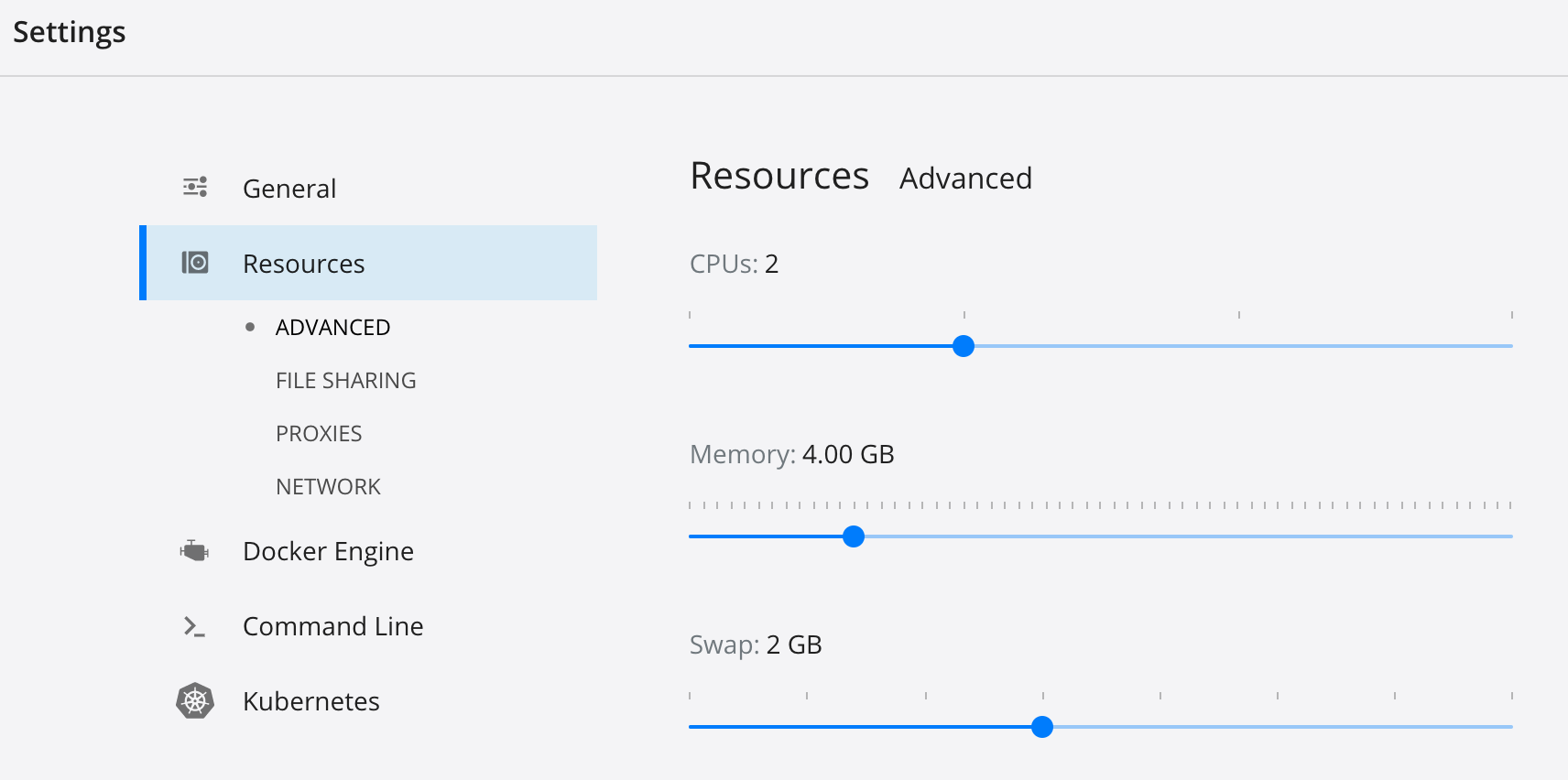
Should you experience problems with the Elasticsearch container, try to increase the memory and/or swap allocation for Docker. On macOS this can be done via the GUI:
-
In case
rails serverdoesn't start with the following message:Data update scripts need to be run before you can start the application. Please run rails data_updates:run (RuntimeError)run the following command:
docker-compose run web rails data_updates:run