
3.9 KiB
| title |
|---|
| Pusher |
Pusher for Realtime Notifications
Pusher is a third party service being used to power the chat system and Push Notifications on iOS & Android native apps.
Chat System
In order to use the chat functionality within your development environment, you will need to sign up for a free-tier Pusher account and retrieve its keys. Then you'll need to provide those keys to the Rails application.
-
Once signed in, fill in the prompt to create a new Pusher Channels app.

-
In your new Pusher Channels app, click the "App Keys" tab.

-
Change your keys accordingly (name of Pusher key -> name of our application key):
app_id -> PUSHER_APP_ID
key -> PUSHER_KEY
secret -> PUSHER_SECRET
cluster -> PUSHER_CLUSTER
-
Done.
Mobile Push Notifications
These steps are required only when working with the native Apps. In order to setup Push Notifications to mobile devices you need to create a Pusher Beams instance and retrieve its credentials
-
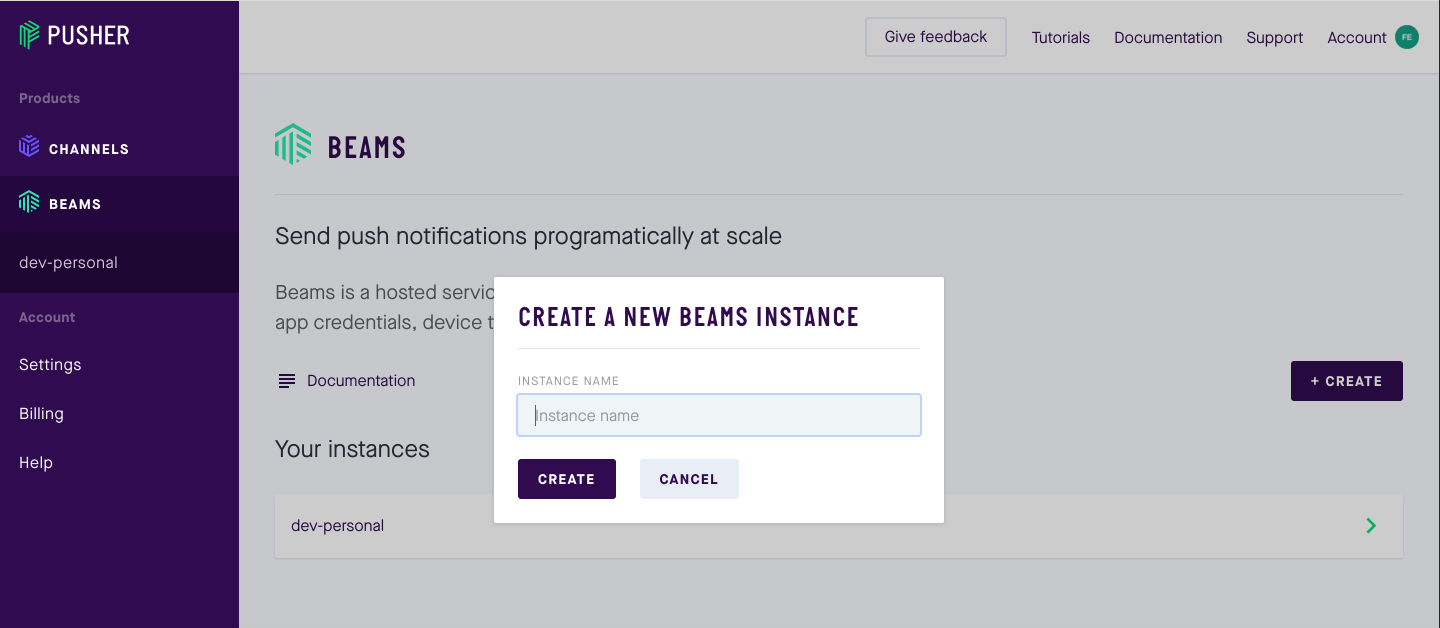
Once signed in, go in the "BEAMS" section on the left sidebar and fill in the prompt to create a new Pusher Beams instance.
-
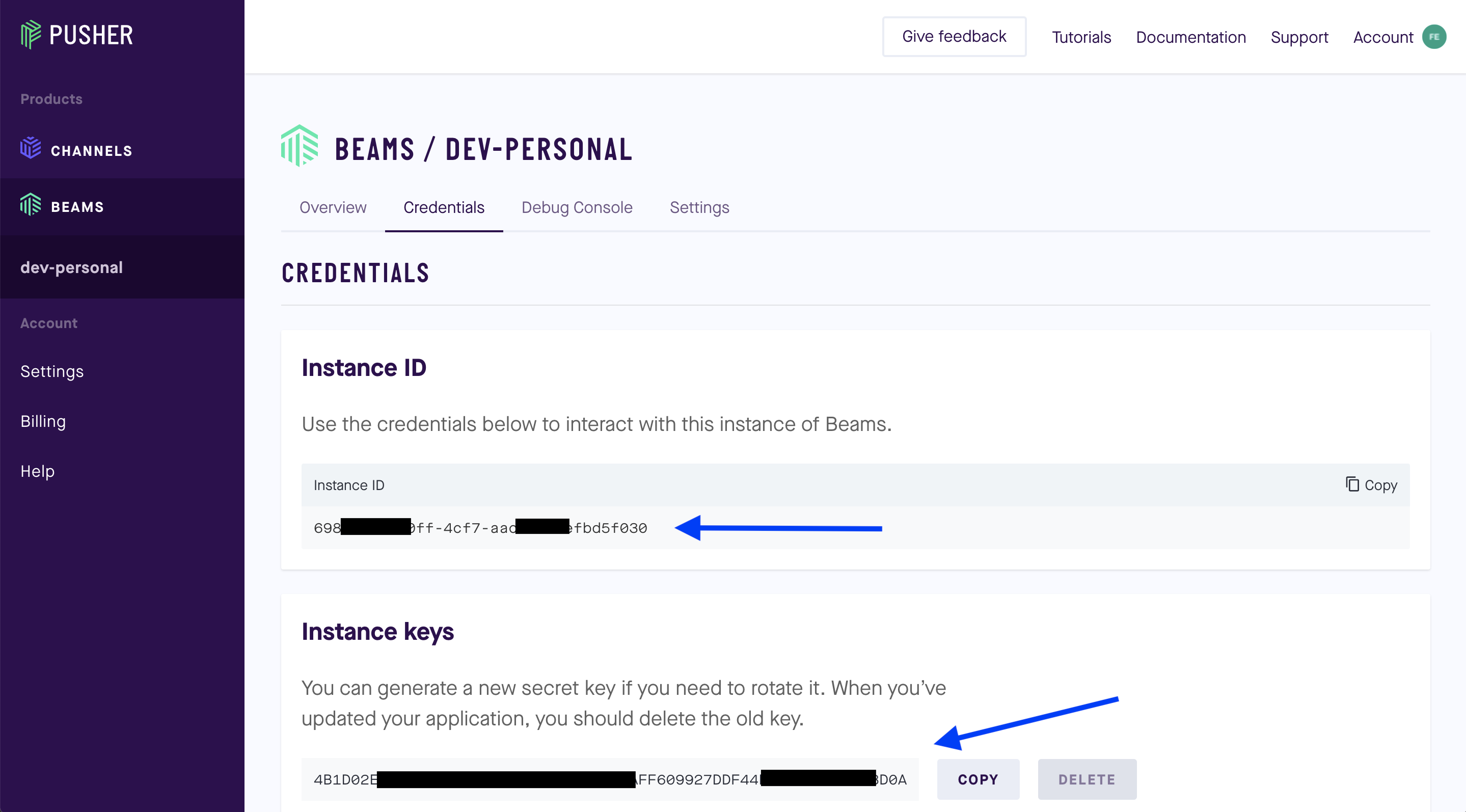
In your new Pusher Beams instance, click the "Credentials" tab.
-
Change your keys accordingly (name of Pusher key -> name of our application key):
Instance ID -> PUSHER_BEAMS_ID
Instance Key -> PUSHER_BEAMS_KEY
- Done. You now have your server configured to use Pusher Beams.
However, in order to send Push Notifications to devices you'll need to do some platform specific configuration as well.
Firebase for Android Push Notifications
-
Sign up or Sign in to Firebase
-
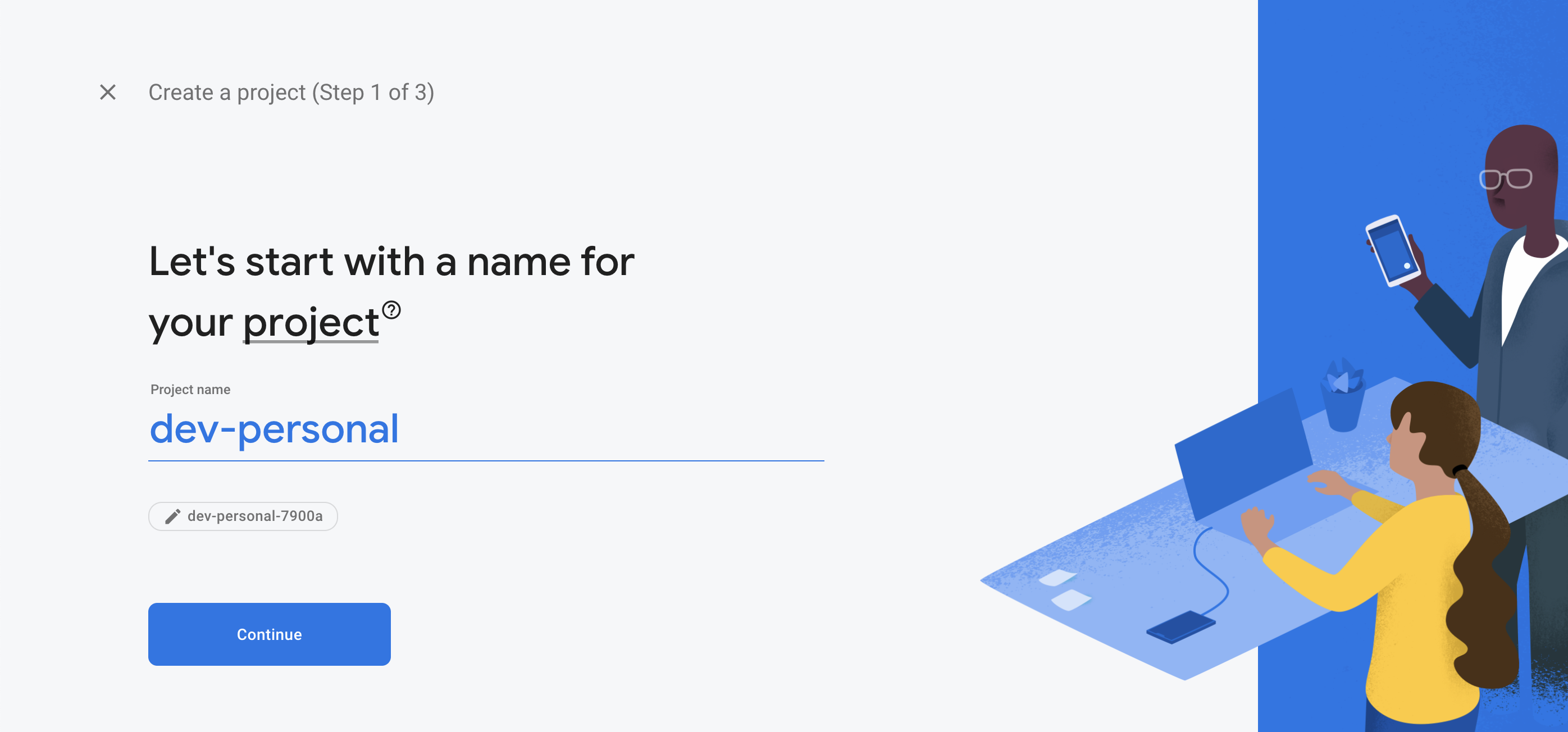
Add a new project. Google Analytics doesn't need to be configured for this Push Notifications to work.

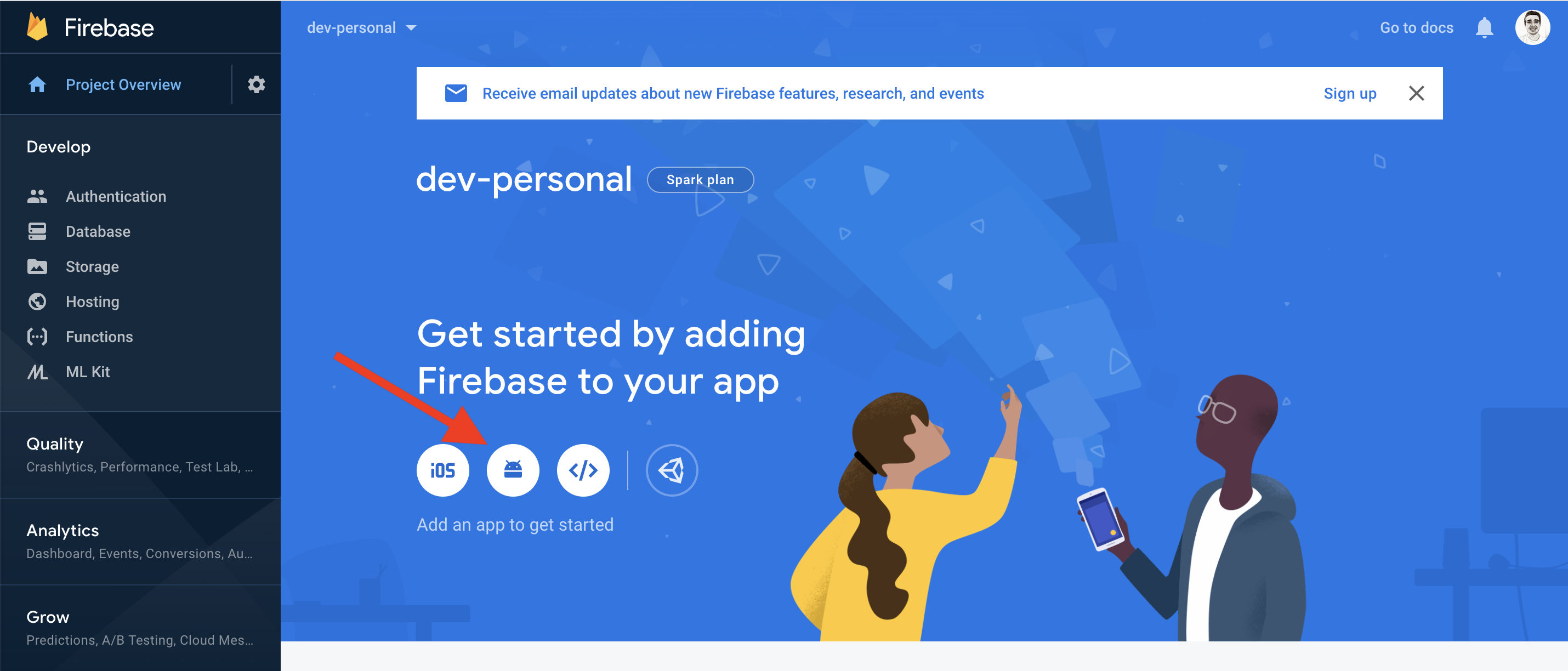
- Add Android support for your iOS app

- Download the
google-services.jsonfile (to be used in the Android app)
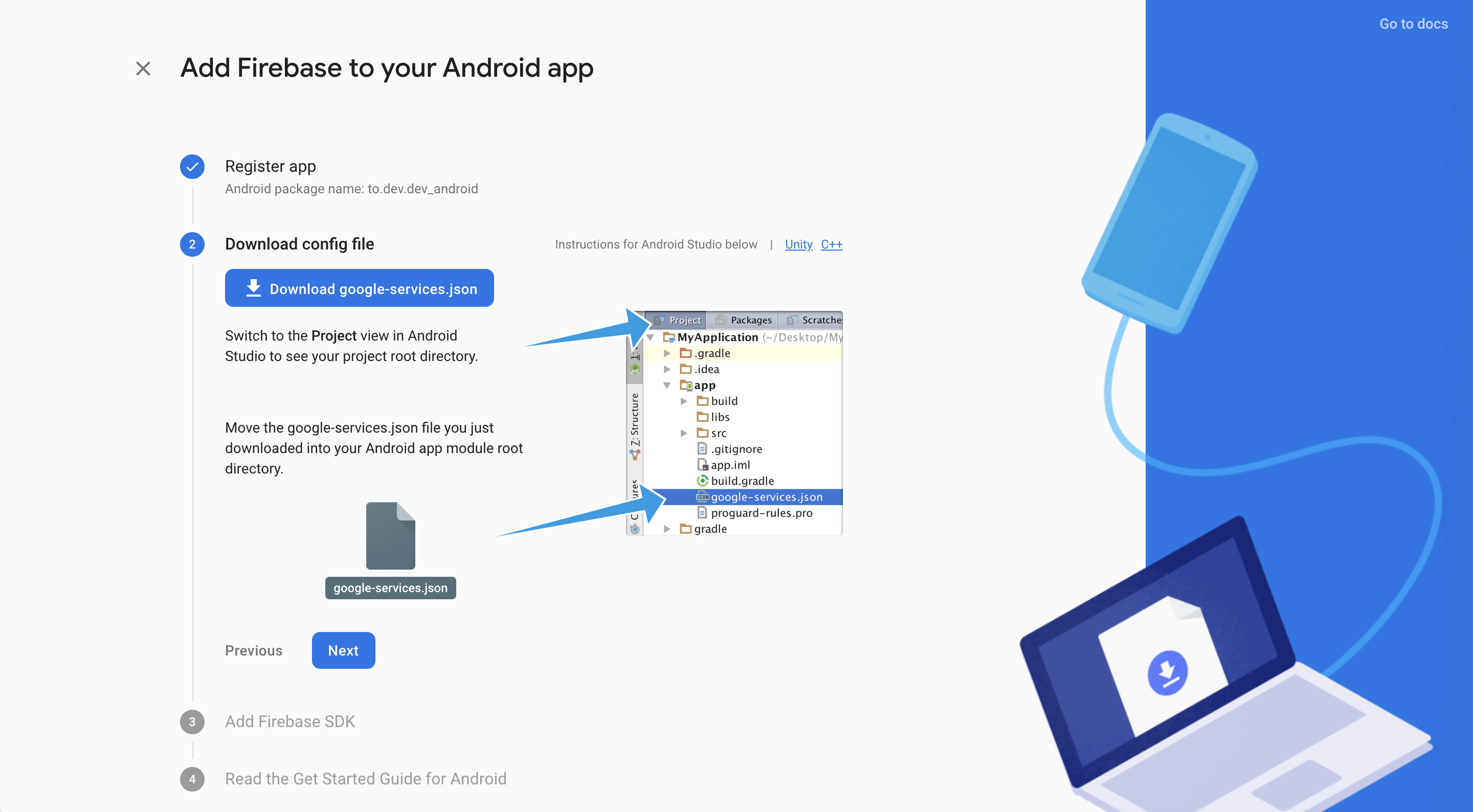
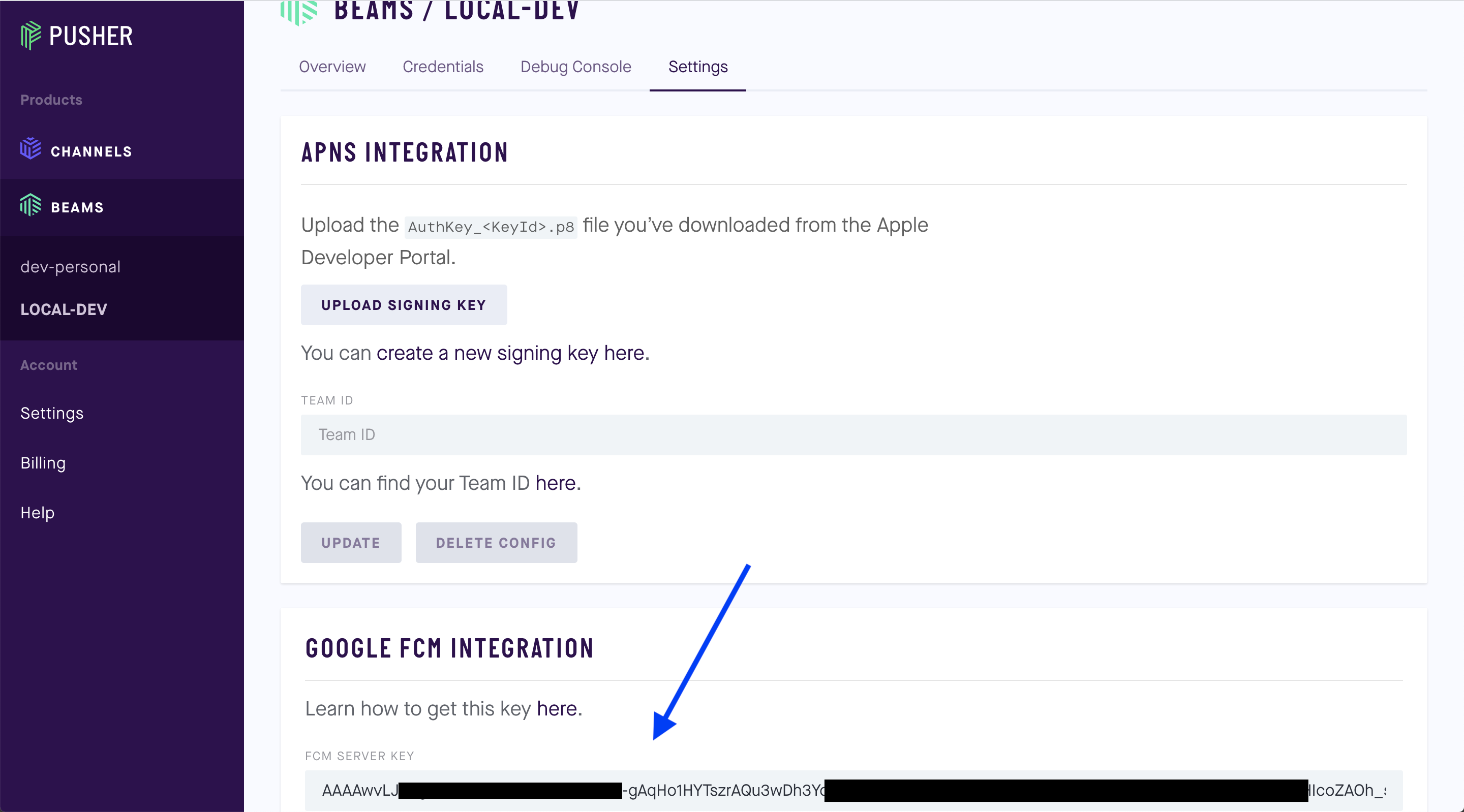
- Finish off the next steps (not required at this moment). Now head over to your Firebase project's settings page and copy the Server key from the "Cloud Messaging" tab

- Now back in your Pusher Beams page account add the Server key from the previous step under the "Settings" tab
- Done.