
96 lines
3.8 KiB
Markdown
96 lines
3.8 KiB
Markdown
---
|
|
title: Configuring Forem
|
|
---
|
|
|
|
# Basic Site Configuration Guide for Forem
|
|
|
|
## Overview
|
|
|
|
As a Forem admin, one of the first steps of managing your site will be to tailor
|
|
your content, branding and other important details based on your community
|
|
goals. This is made simple by the configuration page which can be found at
|
|
https://<span></span>your.forem.url/admin/config.
|
|
|
|
_We advise that you first complete the minimum set up before sending out your
|
|
Forem link to your community._
|
|
|
|
## Complete your Set Up, Configure your Forem
|
|
|
|
Once your Forem instance is set up for the first time, you will most likely see
|
|
the following banner:
|
|
|
|

|
|
|
|
This banner indicates that the Forem configuration process hasn't been completed
|
|
yet.
|
|
|
|
When you click on the link on banner, it will take you to the configuration page
|
|
(i.e. https://<span></span>your.forem.url/admin/config).
|
|
|
|
On this page you will see that the Get Started section is expanded. It contains
|
|
all the mandatory fields that need to be filled out in order for the site to be
|
|
in a usable state. Once it is filled out and submitted, the banner will then
|
|
disappear.
|
|
|
|
## Access and Permissions
|
|
|
|
The following permissions are required to be able to view and/or edit the config
|
|
page:
|
|
|
|
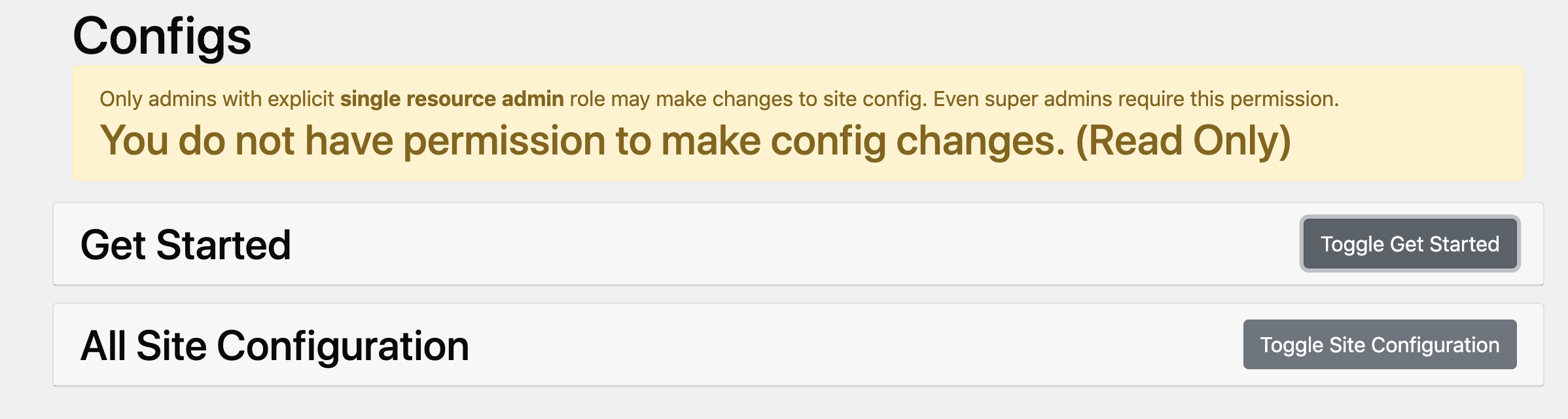
#### Role: super_admin
|
|
|
|
When providing this role to a user they will be able to access the config page.
|
|
However, this page will be a read only view for them. They will see the
|
|
following:
|
|
|
|
|
|
|
|
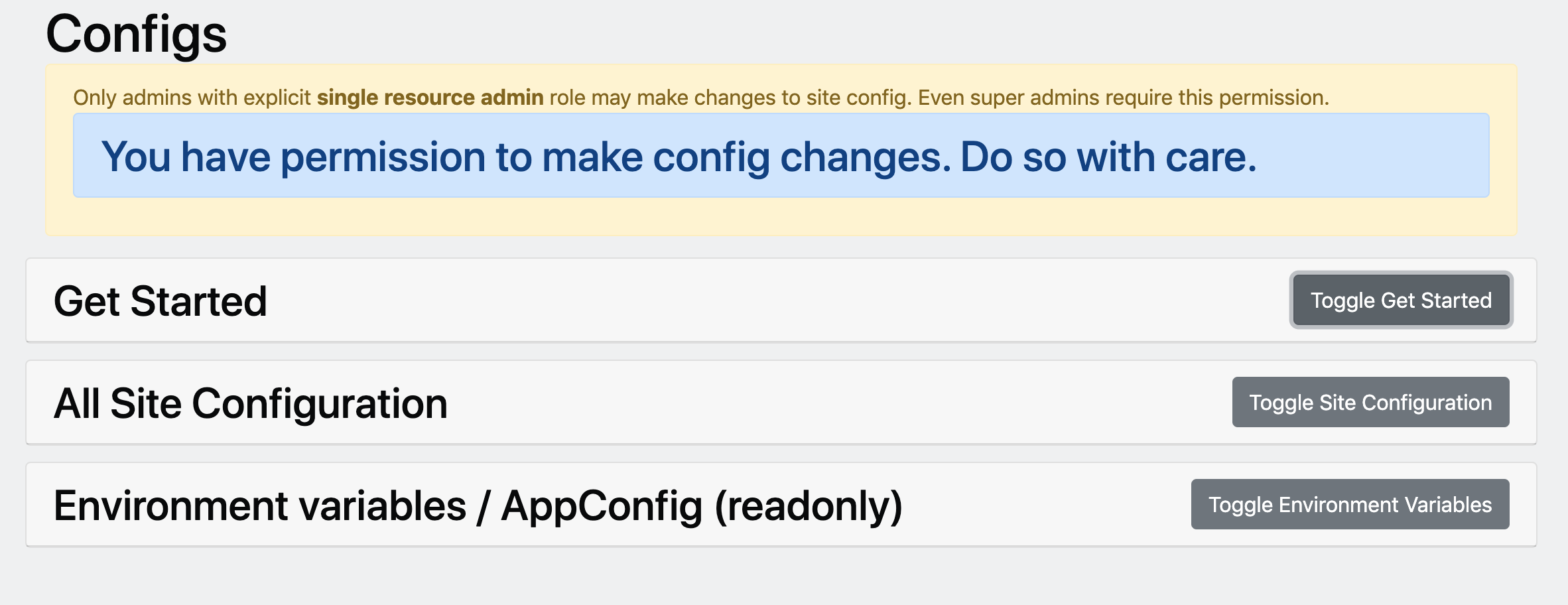
#### Role: single_resource_admin
|
|
|
|
When providing this role to a user they will be able to access the config page,
|
|
and they will be able to edit the config variables.
|
|
|
|
|
|
|
|
The first admin of your Forem will be given the highest permissions. Thereafter,
|
|
they can provide the necessary permissions to subsequent users via the
|
|
https://<span></span>your.forem.url/admin/permissions.
|
|
|
|
## The Configuration Sections
|
|
|
|
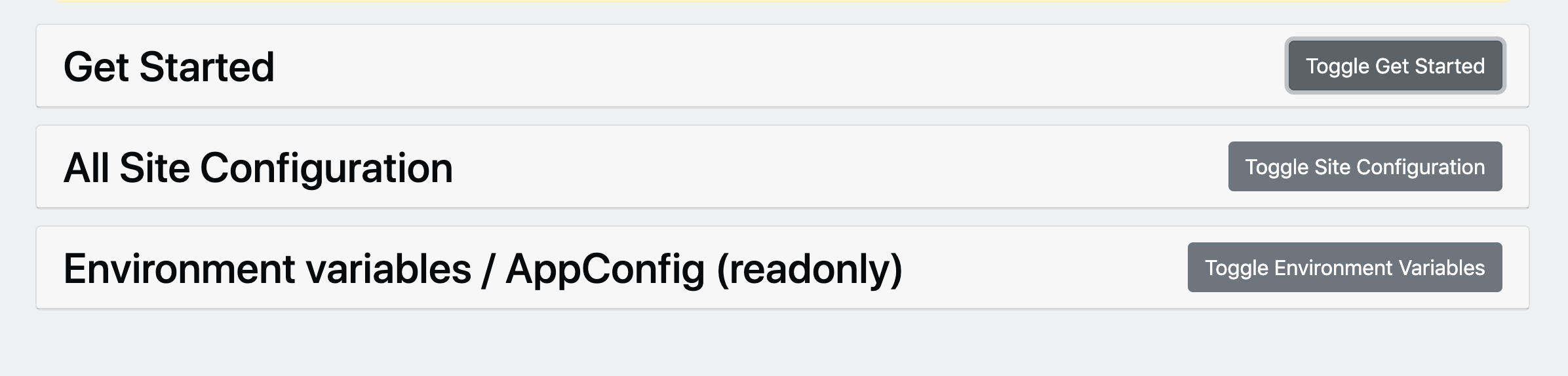
Currently, the configuration page is split into 3 sections. They are as follows:
|
|
|
|
- A **Get Started section** that contains all required fields. These are the
|
|
fields that are required to be filled out, in order to get your Forem in a
|
|
usable state.
|
|
- An **All Site Configuration section** that contains all the possible variables
|
|
that you can configure on the site. This section is broken down into sub
|
|
sections, whereby each subsection will contain a description of what it does,
|
|
and then list the fields that are available for configuration. Each field will
|
|
also contain a concise description of what it is used for.
|
|
- An **Environment Variables section** that provides a read-only view of the
|
|
environment variables that are available to be set on the server. If your
|
|
instance is hosted by Forem, please get in touch with customer support to
|
|
change any of these variables.
|
|
|
|
|
|
|
|
All required fields are marked as such. In addition, you will notice that we
|
|
have set some defaults for certain fields, you may amend them as you see
|
|
relevant for your Forem.
|
|
|
|
## Updating your configurations
|
|
|
|
In order to update any of the variables within the Get Started and All Site
|
|
Configuration sections, you will set the new value and then navigate to the end
|
|
of the section where you will verify that you would like to make the change by
|
|
typing the following sentence:
|
|
|
|
```
|
|
My username is <specify your username here> and this action is 100% safe and appropriate.
|
|
```
|
|
|
|
You will now see your updated values and the changes on your site will be in
|
|
effect.
|
|
|
|

|